MeshGlaze · 3D model painting for iPad and iPhone
Make your 3D prints your own.
Your model. Your colors. Your touch.
Import an STL or 3MF and paint directly on its surface with your finger or Apple Pencil. Add a small detail, fill a whole part, or try a new color scheme. Export your painting to continue in your slicer.
- Detailed painting, adjustable Edge fill and colors from a photo
- A project gallery with automatic saving and editable 3MF export
- Free painting · $14.99 USD once for all exports

What is it? MeshGlaze is an iPad and iPhone app for painting 3D models for multicolor 3D printing. Import an STL or 3MF file, paint it with a finger or Apple Pencil, and export a painted 3MF for Bambu Studio, PrusaSlicer, OrcaSlicer, or Cura, or a textured OBJ. Painting is free and works offline; a one-time $14.99 USD purchase unlocks exports. It needs iPadOS 26 or later; iPhone support starts with version 2.1 on iOS 26 or later. MeshGlaze was formerly called Model Painter.
From model to your color scheme
- 1
Bring a model
Open an STL or 3MF, including a 3MF with painted colors. Try the included 3DBenchy if you want to start right away.
- 2
Make it yours
Brush on the surface, fill connected areas and pick a palette. Use two fingers to move the camera as you paint.
- 3
Prepare to print
Unlock export, save a painted 3MF, and open it in your desktop slicer. Check the colors, assign filaments, then slice.
New in MeshGlaze 2.1
Now on iPhone
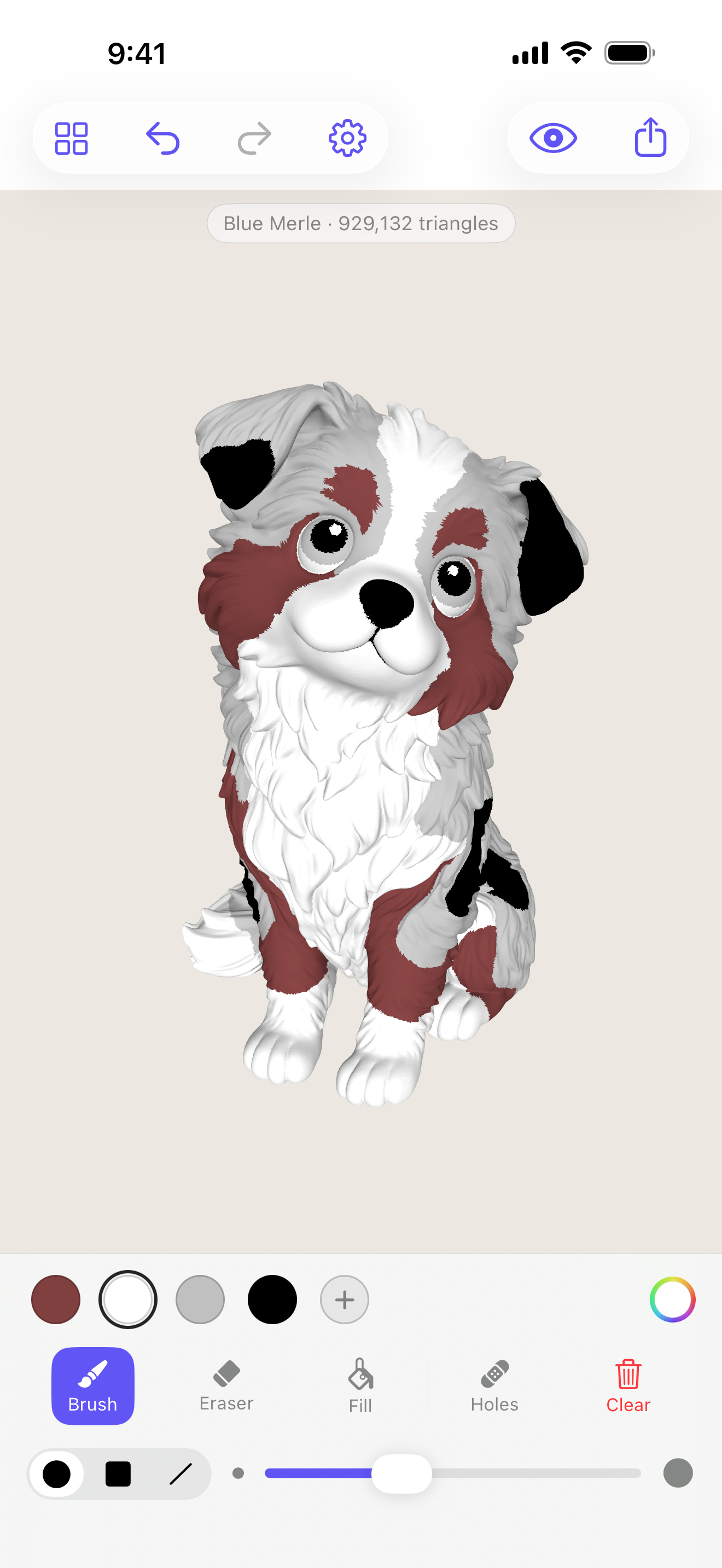
The same brushes, fill tools, project gallery and export, on the phone in your pocket. In portrait the palette and tools sit under the model; turn the phone and they move beside it, so the model keeps the room.
One finger paints and two fingers move the camera. Already unlocked export on iPad? It is unlocked on iPhone too, with the same Apple Account.
Projects are saved on each device separately. To continue a painting on another device, export a MeshGlaze 3MF and open it there.
New in MeshGlaze 2.0
A gallery for everything you’re painting
Keep separate projects and switch between them. Your previously saved painting joins the gallery when you update.
Find your painting
Browse project previews, search by name and sort by name or last modified. Rename projects as your collection grows.
Try another color scheme
Duplicate a project and explore a different look while keeping the original painting.
Pick up where you left off
Projects automatically save your painting, undo/redo history, palette, view and reference image on your device.
Tools for the way you paint
Detailed painting
Switch from Standard to Detailed for finer painted areas, especially on models with large triangles. Both modes are free.
Fill with control
Adjust the Edge angle to control where a fill stops. Fill a connected Part, a matching Color, or All of the model.
Your filament palette
Keep up to 8 colors close at hand. Select a swatch, change its color, or add another to plan your print.
Colors from a picture
Open a floating reference image and use its eyedropper. Drag to find a color, then lift to put it in your selected palette slot.
Brush, erase, refine
Use round, square and flat brushes. On iPad, Apple Pencil pressure changes stroke size. Undo, redo and Fill Holes help you refine the result.
Keep your projects
Each painting has its own saved project. Open it from the gallery to continue, or duplicate it to try another color scheme.
A closer look
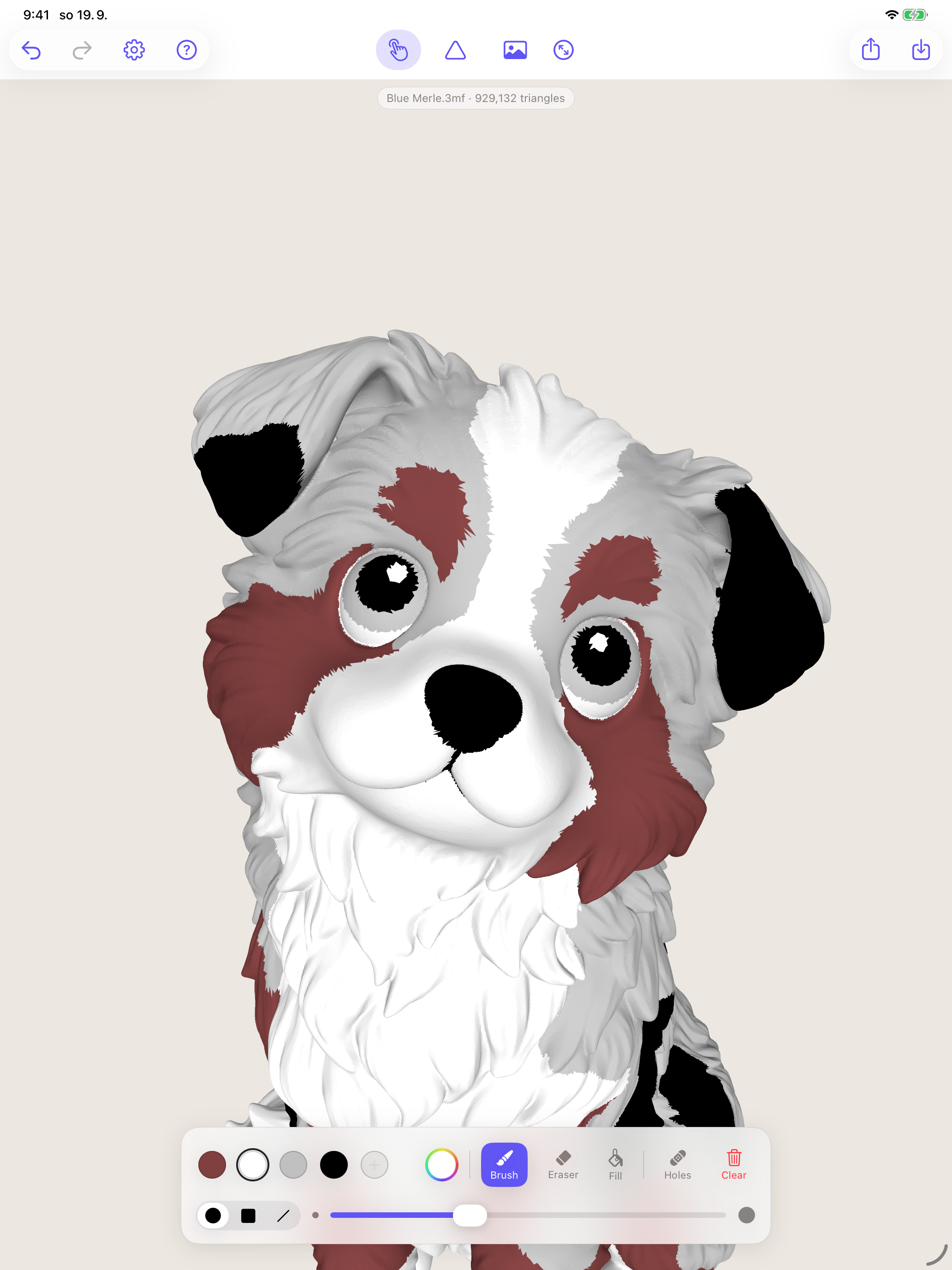
Make room for the small details
Zoom in, choose a smaller brush and work directly on the surface. For finer marks on models with large triangles, choose Detailed in Settings → Painting mode.
Keep a reference picture beside your model, then sample colors from it with the eyedropper. Round, square and flat brushes let you change the shape of a stroke as well as its size.
Higher detail settings use more memory. The app offers the settings supported by your device.
A little color goes a long way
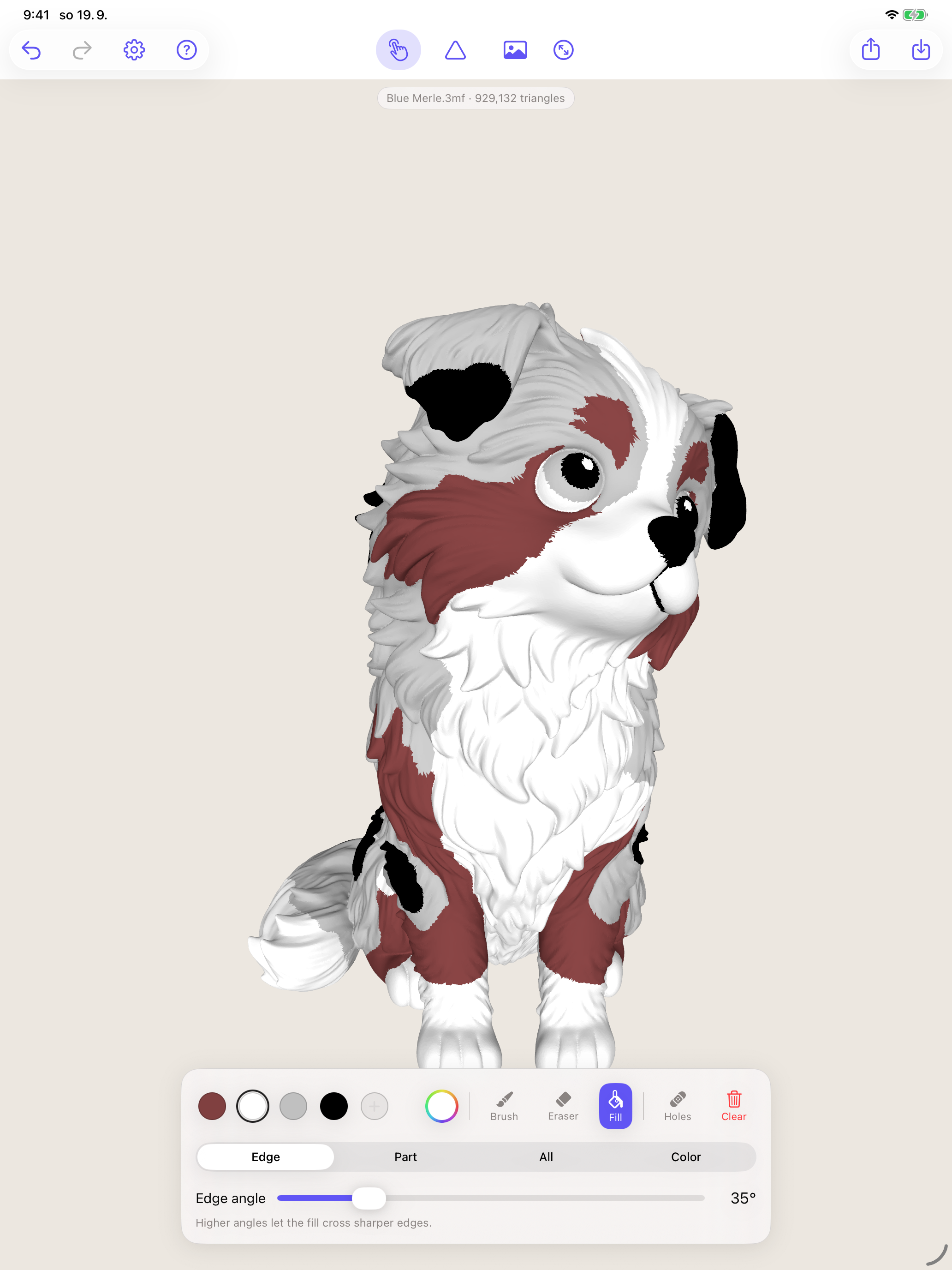
Let the edges guide your fill
Select Fill → Edge and adjust the angle. Lower angles stop at gentler changes in the surface; higher angles let color cross sharper edges and reach farther.
Use Part for a whole connected piece, Color for a connected area of the same color, or All for the entire model. Undo makes it easy to try another approach.
Take your painting with you
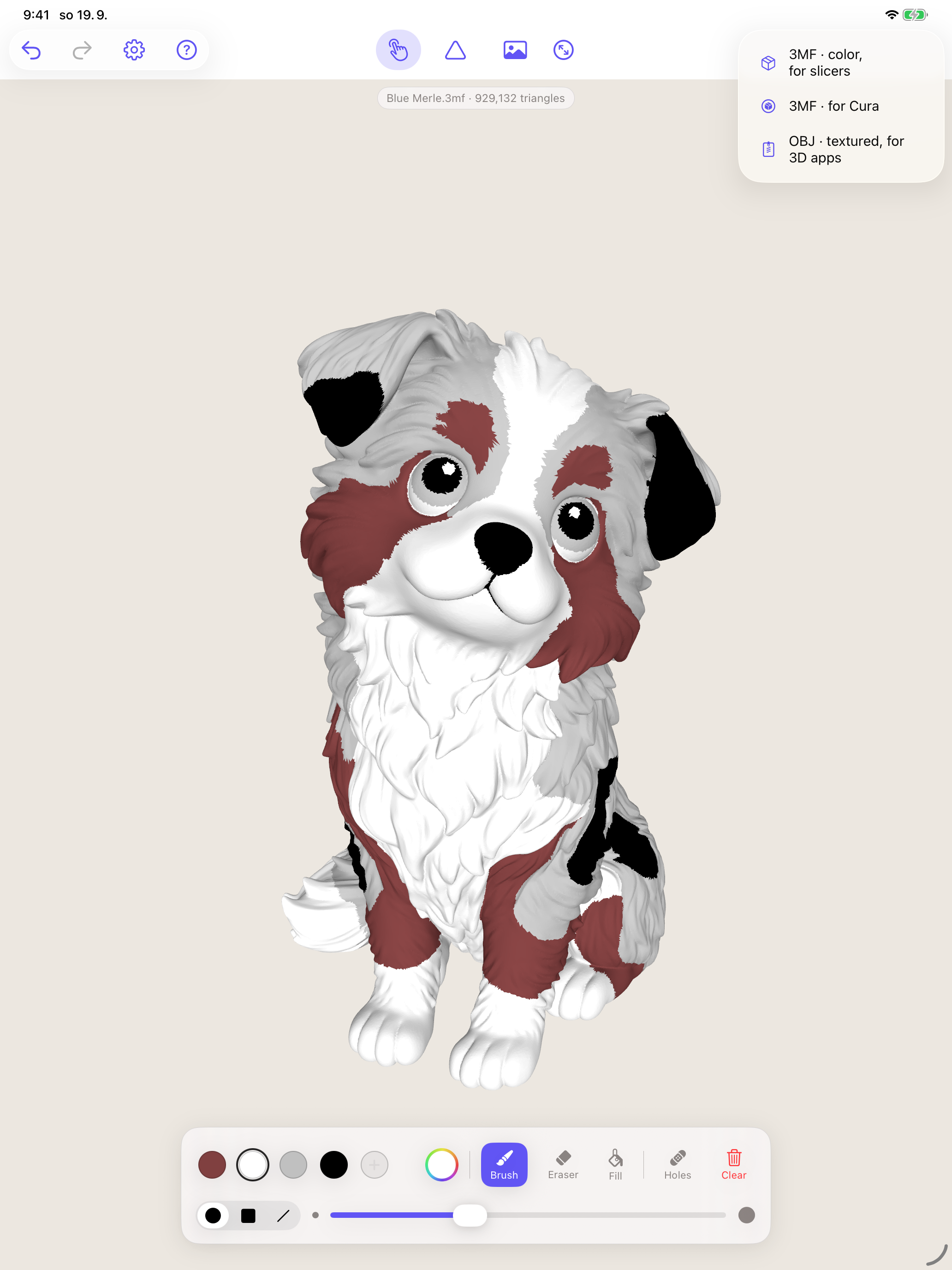
Choose the export for your next step
- 3MF · color, for slicers — painted models for Bambu Studio, PrusaSlicer and OrcaSlicer.
- 3MF · for Cura — a separate export that carries your painting in Cura's texture format.
- OBJ · textured — an OBJ, material file and PNG texture together in a ZIP for Blender and other 3D editors.
Reopen a 3MF exported by MeshGlaze 2.0 as a project with the original model, settings and final painting. Earlier undo steps and the reference image stay in your local project.
Before printing, check the imported colors and assign filaments in your slicer. Color handling depends on the slicer version and export format. For Detailed paintings in Bambu Studio, PrusaSlicer or OrcaSlicer, choose the slicer 3MF.
Free to paint. One purchase to export.
Paint
Free
Import models and use every painting tool, including Detailed mode, Edge fill and the reference-image eyedropper. Start with the included sample.
Unlock Export
$14.99 USD · one time
All export formats and future exports. No subscription. Already purchased? Restore Purchases with the same Apple Account.
Regional prices are shown in the app before you buy.
Your painting stays with you
Paint offline, with no account, ads or tracking. Models, paintings and reference images are processed on your device. You choose where to save or share an export. Purchases and restores are handled by Apple.
Frequently asked questions
How do I try it without a model file?
Choose Load sample model in the project gallery to paint the included 3DBenchy. The dog shown on this page is an imported example, not a bundled model.
What does Detailed mode do?
Choose Detailed in Settings → Painting mode for finer painted areas, especially on models with large triangles. Higher detail settings use more memory. Standard remains the default, and both modes are included in free painting.
How do I pick a color from a reference image?
Open a picture with the photo button, select a palette slot, and tap the eyedropper in the reference panel. Drag across the picture to find a color, then lift to use it in the selected slot.
How do I move the camera while painting?
With Paint with finger enabled, one finger paints and two fingers move the camera. Pinch to zoom and twist to roll the view. Turn off Paint with finger to orbit with one finger. On iPad, Apple Pencil always paints.
Which export should I choose?
Use 3MF · color, for slicers for Bambu Studio, PrusaSlicer and OrcaSlicer. Choose 3MF · for Cura for Cura, or OBJ · textured for 3D editors that support textures. Before printing, check the imported colors and assign filaments in your slicer. Support varies by slicer version and export format.
How are my projects saved?
MeshGlaze automatically saves each project on your device, including its painting, undo/redo history, palette, view and reference image. Browse previews, search, rename and duplicate projects in the gallery. Your previously saved painting is added to the gallery when you update to version 2.0.
Can I keep editing an exported 3MF?
Yes. A 3MF exported by MeshGlaze 2.0 reopens as a project with the original model, settings and final painting. The export does not include the earlier stroke history or the reference image; those remain in the local project.
How much does the app cost?
Importing and all painting tools are free. A one-time $14.99 USD purchase unlocks all export formats. Regional prices are shown in the app. There is no subscription.
Do I need an Apple Pencil?
No. You can paint with your finger. On iPad, Apple Pencil adds pressure-sensitive brush size and follows the Pencil angle with square and flat brushes.
Does it work on iPhone?
Yes, from version 2.1. MeshGlaze runs on iPhone with iOS 26 or later, in portrait or landscape, with the same brushes, fill tools, project gallery and export as on iPad. You paint with your finger; Apple Pencil features are for iPad. Projects are stored on each device separately.
I already bought Unlock Export. Do I pay again?
No. The existing unlock continues to work. If it is missing on another iPad or iPhone, use the same Apple Account, open the export purchase screen and tap Restore Purchases.
For step-by-step help, visit the support page or email info@druidori.com.
What will you paint?
Bring your model, or start with the included 3DBenchy.
Download on theApp Store