Multicolor 3D printing guides
Painting STL files on an iPad or iPhone: when it helps
Short answer: Bambu Studio, PrusaSlicer and OrcaSlicer are desktop programs for Windows, macOS and Linux, so slicing usually happens on a computer. Painting doesn’t have to: a touch screen and a pencil help with freehand detail and with trying color schemes away from the desk. For per-part colors, a few fills or stripes, the slicer’s free tools are enough.
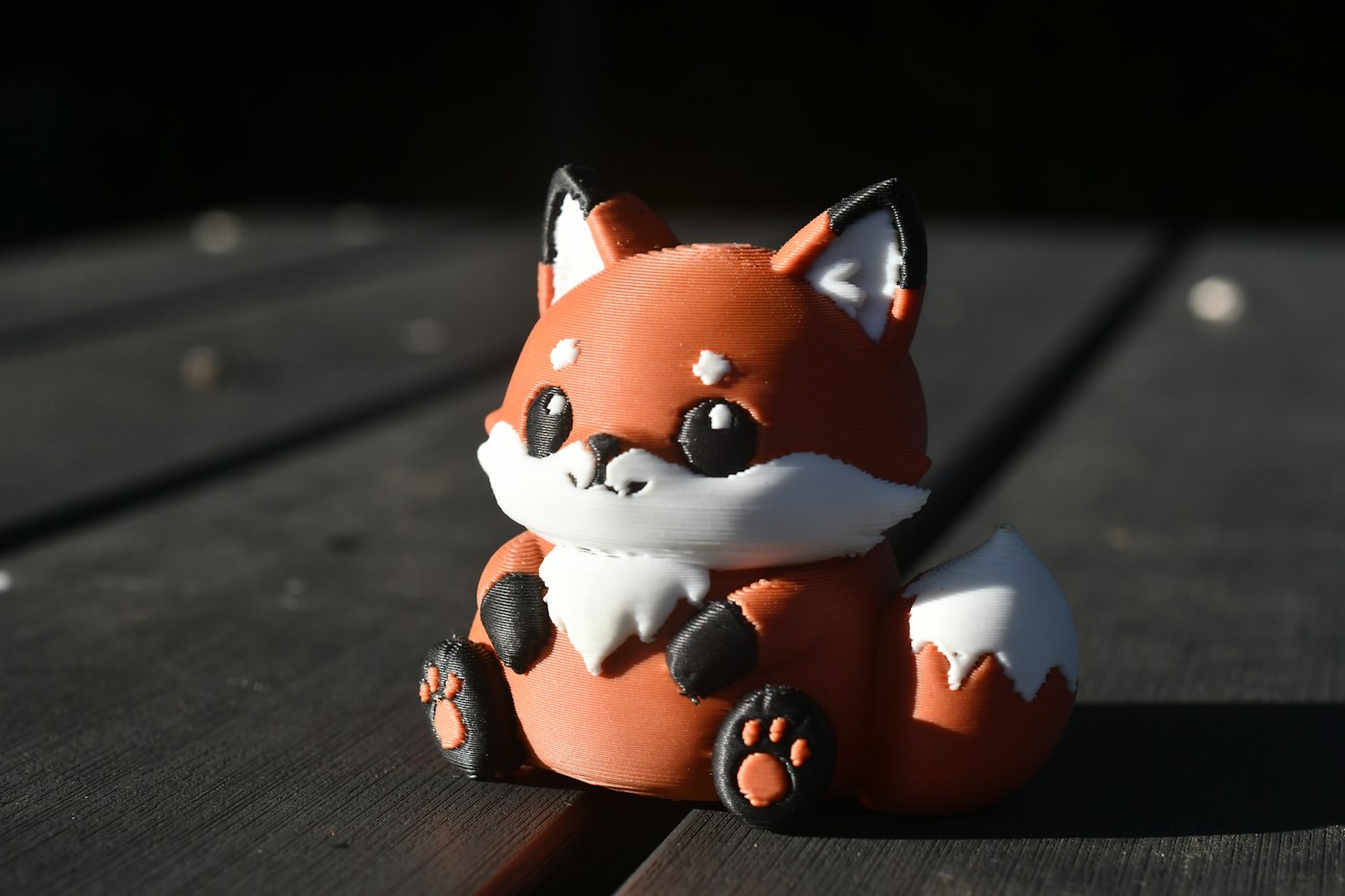
Can you run Bambu Studio or OrcaSlicer on an iPad?
No, not as of November 2026. Bambu Lab publishes Bambu Studio for Windows, macOS and Linux. OrcaSlicer is released for the same three systems, and Prusa says PrusaSlicer “runs on Windows, Mac, and Linux.”
The printer makers’ mobile options are different tools:
- Bambu Handy is Bambu Lab’s mobile app for monitoring and managing its printers. Bambu Lab documents color painting as a Bambu Studio feature.
- Prusa EasyPrint runs on Printables and in the Prusa App, with touch controls on phones and tablets. It is free, slices on Prusa’s servers, needs a Prusa Account, and has a Paint tool with smart fill and a brush for multi-material printers such as the Prusa XL or an MK4S with the MMU3. If that’s your printer, try it first.
When the slicer is enough
- The model comes in parts. If the designer split the model into one part per color, you only assign a filament to each part. No painting needed.
- A few large areas. Fill and smart fill color a region up to its sharp edges with one click. Bases, hulls and clothing often need nothing more.
- Stripes and color by height. The height range tool colors everything between two heights in one step.
- You’re at the computer anyway. The slicer shows the sliced preview and the flushing right where you paint, and its painting tools are free.
When a touch screen helps
- Freehand detail. Eyes, markings, patterns and lettering on curved surfaces are drawing work. With a pencil or a finger it feels like drawing, and an app that reads pencil pressure varies the stroke as you go.
- Trying color schemes. Painting two or three versions of a model is easier to fit in on the couch than at the desk, and you decide before any filament is used.
- Away from the computer. The tablet or phone goes where you are; the painted file waits for the slicer.
- Coarse models. On models made of a few large triangles, painted borders can come out blocky. Look for a tool that paints finer than the mesh; PrusaSlicer, for example, can split bigger triangles while you paint.
Tablet for painting, computer for slicing
- Import the model on the tablet or phone: an STL, or a 3MF you’ve already started.
- Set the palette to your filaments. Use the colors loaded in your AMS or MMU, or the ones you plan to load.
- Paint large areas first, details second. Fills give clean borders; the brush does the rest.
- Export a painted 3MF and move it to the computer, for example through a cloud drive, a USB cable or AirDrop to a Mac.
- Open it in your slicer. Check that the colors came through and assign filaments.
- Slice and check the preview for tiny islands of color and the flushing, then print.
The slicer steps are the same as for a model painted on the computer; see How to paint an STL in Bambu Studio, PrusaSlicer and OrcaSlicer.
MeshGlaze: the app we made for this
Full disclosure: we make MeshGlaze, an app for painting 3D models for multicolor printing on iPad, iPhone and Android phones and tablets. What it does, according to its product page:
- Import an STL or 3MF, including a 3MF with painted colors. The included 3DBenchy lets you try it right away.
- Paint with your finger, Apple Pencil on iPad or a stylus on Android. Pencil and stylus change the stroke size with pressure, and square and flat brushes follow their angle. One finger paints, two fingers move the camera.
- Fill up to edges with an adjustable angle, or fill a connected Part, a connected area of one Color, or All of the model.
- Detailed mode for finer painted areas, especially on models with large triangles. Higher detail settings use more memory, and the app offers the settings your device supports.
- Up to 8 palette colors and a reference image with an eyedropper for picking colors from a photo.
- Export a painted 3MF for Bambu Studio, PrusaSlicer and OrcaSlicer, plus exports for Cura, Flash Studio and 3D editors.
- Offline, with no account, ads or tracking. Painting is free; a one-time purchase unlocks all exports. No subscription.
What it doesn’t do: MeshGlaze doesn’t slice. You open its 3MF in your desktop slicer, check the colors and assign filaments before printing, and color handling depends on the slicer version and export format. It needs iOS or iPadOS 26 or later, or Android 8.0 or later.
Common questions
Can you use Bambu Studio on an iPad?
Not as of November 2026. Bambu Lab provides Bambu Studio for Windows, macOS and Linux, and its mobile app Bambu Handy is for monitoring and managing printers. You can paint a model on an iPad and finish it in Bambu Studio on a computer.
Can I use OrcaSlicer on an iPad?
No. As of November 2026, OrcaSlicer is released for Windows, macOS and Linux.
Can I paint a 3D model with Apple Pencil?
Yes, in apps that support it. In MeshGlaze, Apple Pencil on iPad changes the brush size with pressure, and square and flat brushes follow its angle. A finger works too.
Do I still need a computer?
For Bambu Studio, PrusaSlicer or OrcaSlicer, yes: you open the painted 3MF there to assign filaments and slice. Owners of Prusa multi-material printers can paint and slice in EasyPrint instead, which slices on Prusa’s servers.
Read next
Sources
- BambuStudio on GitHub — Bambu Lab: prebuilt releases for Windows, macOS and Linux
- OrcaSlicer on GitHub — OrcaSlicer project: releases for Windows, macOS and Linux, and its origins
- PrusaSlicer — Prusa Research: platforms and EasyPrint
- EasyPrint — Prusa Knowledge Base: cloud slicing on phone, tablet or computer, painting and assigning colors
- Bambu Handy Quick Start — Bambu Lab Wiki: what the mobile app is for
- Color Painting Tool — Bambu Lab Wiki: the six painting tools and their shortcut keys
- Multi-color printing — Bambu Lab Wiki: filaments in a project, filament per object or part, flushing, AMS mapping
- Multi material painting — Prusa Knowledge Base: brush, smart fill, bucket fill, height range, limits