
Transcribe offline. Never lose a recording.
The voice recorder for iPhone and iPad that works in airplane mode — and survives a crash.
Everec – Dictaphone is an offline transcription app and voice recorder for iPhone and iPad. It turns meetings, lectures, and interviews into text right on your device, without an internet connection — in English, German, Spanish, French, Czech, Polish, and more than 20 other languages. The audio is never uploaded — there is no server and no account. And because audio is written to disk as you speak, a crash, a force-quit, or a dead battery still leaves a playable file.
- On-device transcription in 25+ languages — works offline, audio never leaves your device
- Crash-safe recording — playable to the last seconds, recovered on the next launch
- New in 2.1: import audio from other apps and transcribe it offline
- Deleted by mistake? It waits 30 days in Recently Deleted — and a trim can be undone
- Encrypted on your device — we cannot read your recordings
- No account, no ads · App Store privacy label: Data Not Collected
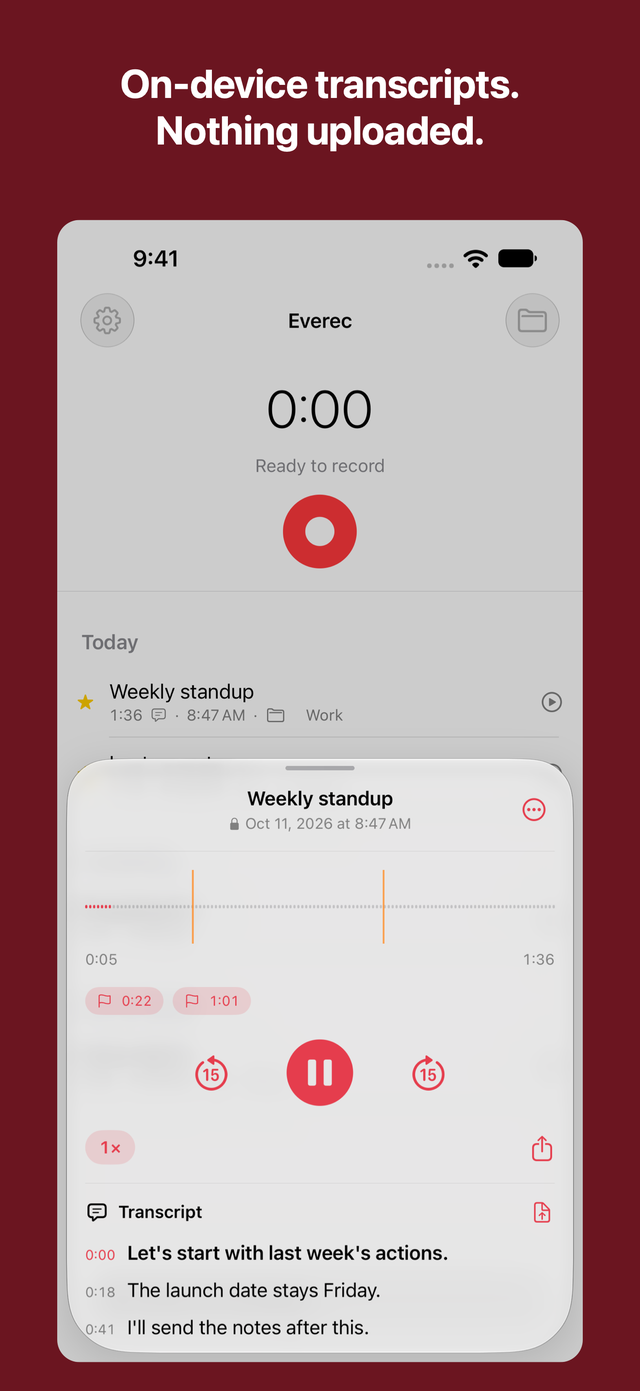
What is it? Everec is an offline transcription app and voice recorder for iPhone and iPad (iOS 26 or later). Transcripts are made on the device — 25 European languages by a speech model built into the app, Japanese, Korean, Chinese, and more by Apple’s on-device engines — so they work without an internet connection and the audio is never uploaded. Recordings are written to disk as you speak, so a crash does not lose them, and they can be encrypted on the device. Audio from other apps can be imported and transcribed the same way, and a deleted recording waits 30 days in Recently Deleted. Recording is unlimited and free, with 15 minutes of transcription a month. There is no account and there are no ads.
Everec at a glance
| Devices | iPhone and iPad with iOS or iPadOS 26 or later, including the foldable iPhone Duo. No Android version. |
|---|---|
| Internet needed? | No. Recording, transcription, search, and export work in airplane mode. The 25 built-in languages need no download at all; for the others, iOS downloads Apple’s speech model once. |
| Where the audio goes | Nowhere. There is no Everec server and no account. App Store privacy label: Data Not Collected. |
| Speech engines | A speech model built into the app for 25 European languages; Apple’s on-device engines (SpeechAnalyzer) for the rest. Not Whisper, not a cloud service. |
| When the text appears | After you stop recording: tap Transcribe, or turn on Automatically transcribe. No live captions while recording. |
| Languages | 25 European languages built in — English, German, Spanish, French, Italian, Portuguese, Czech, Polish, Dutch, Swedish, Ukrainian, and more — plus Japanese, Korean, Chinese, and others through Apple. Full list. |
| What it transcribes | Recordings made in Everec, and audio or video files you import — share them to Everec from another app, or pick them in Files. |
| Transcripts | Timestamped — tap a sentence to jump there, or see the time of day it was said. Correct them by hand. Full-text search. Export as txt, Markdown, or subtitles (.srt). No speaker labels, no AI summaries. |
| Editing | Trim the start or end of a recording — free, without re-encoding. Restore Original undoes it for 30 days. |
| Deleted by mistake? | Recently Deleted keeps a recording for 30 days, and Undo brings it straight back. |
| Backup | No cloud sync. Copy to a Folder puts every new recording in a folder you choose, such as iCloud Drive. |
| Accessibility | VoiceOver and larger text sizes on every screen. |
| Price | Free: unlimited recording and importing, and 15 minutes of transcription a month. Everec Pro: monthly, yearly with a 7-day free trial, or once. |
How to transcribe audio offline on iPhone and iPad
- 1
Install Everec and pick a language
Everec transcribes in your device’s language unless you choose another in Settings → Transcription → Default language, or for one recording in the player. The 25 built-in languages work straight away; for the others, iOS downloads Apple’s speech model once — the only step that needs a connection.
- 2
Record — or import
Tap record. Keep going with the screen locked, in airplane mode, for as long as the meeting or lecture runs. Already have the audio? Share it to Everec from another app, or choose Import Audio… in the library menu.
- 3
Transcribe
Stop and tap Transcribe. Or turn on Automatically transcribe, and every new recording is transcribed as soon as you stop.
- 4
Read, correct, search, export
Tap a sentence to hear that moment, fix a word with the pencil button, search across every transcript, and export plain text, Markdown, or subtitles (.srt).
Offline transcription that works in airplane mode
Many transcription apps send your audio to a server. Everec has no server. Switch your iPhone or iPad to airplane mode and everything below still works.
🎙 Record or import
Unlimited recording with the screen locked or the app in the background. Pause, resume, and drop chapter markers as you go — or bring in audio from other apps.
📝 Transcribe
Tap Transcribe and the text is produced on the device. Tap a sentence to jump the playhead to that moment.
🔎 Search & export
Search inside every transcript. Export plain text, Markdown, or subtitles (.srt), and audio as m4a or WAV.
Nothing to download for the 25 built-in languages — the speech model is part of the app. For the other languages, iOS downloads Apple’s speech model the first time you use one. After that, transcription needs no connection.
Transcribe audio from other apps
New in version 2.1. A voice memo, a lecture someone sent you, the sound of a video — bring it into Everec and transcribe it on your iPhone or iPad, in airplane mode too. Nothing is uploaded.
- 1
Share it to Everec
In Voice Memos, Files, Mail, or another app, tap Share and choose Everec. Or open the library menu in Everec and choose Import Audio… to pick files in Files.
- 2
Find it in your library
Everec copies the file into the library and checks it, like a new recording. m4a files are kept as they are; mp3, WAV, and the sound of a video are converted to m4a.
- 3
Transcribe
Tap Transcribe. Importing is free; transcribing counts toward the free 15 minutes a month, and Pro makes it unlimited.
✏️ Correct the transcript
Tap the pencil above the transcript to fix a name or a word. Every line keeps its timestamp.
🕘 The time of day
Tap the time under the waveform and the player, the markers, and the transcript show when each moment was recorded — even across pauses. For recordings made with 2.1 or later.
📁 A copy in iCloud Drive
Turn on Copy to a Folder and every new recording, with its transcript, also lands in a folder you choose. One way only: Everec never changes or deletes anything there.
Transcription languages
Since version 2.0 Everec carries its own speech model, so it transcribes many more languages — more accurately than before, with punctuation, and with nothing to download.
Built into the app
- Bulgarian
- Croatian
- Czech
- Danish
- Dutch
- English
- Estonian
- Finnish
- French
- German
- Greek
- Hungarian
- Italian
- Latvian
- Lithuanian
- Maltese
- Polish
- Portuguese
- Romanian
- Russian
- Slovak
- Slovenian
- Spanish
- Swedish
- Ukrainian
Through Apple’s on-device engines
- Japanese
- Korean
- Chinese (Mandarin)
- Cantonese
- Hindi
- Arabic
- Hebrew
- Turkish
- Thai
- Vietnamese
- Indonesian
- Malay
- Catalan
- Norwegian
Apple’s list depends on your iOS version, and Everec shows the exact one in Settings → Transcription → Default language. For these languages iOS downloads Apple’s speech model once, the first time you use it. Recording, encryption, and export work in every language. The app itself is available in more than 40 languages.
On iPhone, iPad, and iPhone Duo
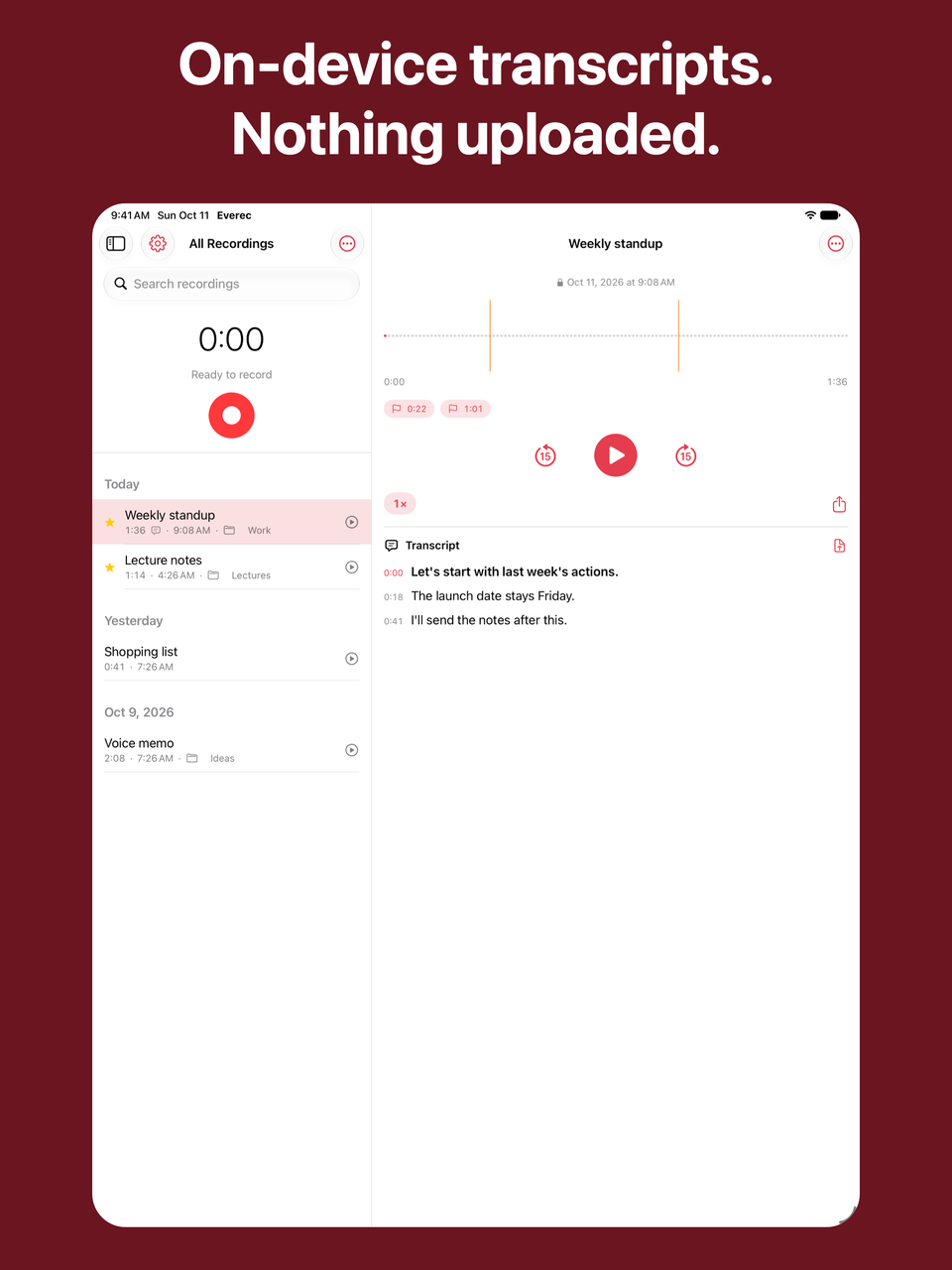
Everec runs natively on iPad. Your folders sit in the sidebar, the recordings next to them, and the recording you pick opens beside the list with its waveform, chapter markers, and transcript — in portrait and in landscape. Touch ID locks the library on iPads without Face ID.
On the foldable iPhone Duo, the outer display keeps the iPhone layout. Unfold it and the player and your library sit side by side; fold or unfold in the middle of playback and the recording keeps playing, with the list where you left it.
Every screen works with VoiceOver and with the larger text sizes.
Everec Pro works on every device that uses the same App Store account. There is no cloud sync; Copy to a Folder can put a copy of every new recording in iCloud Drive.
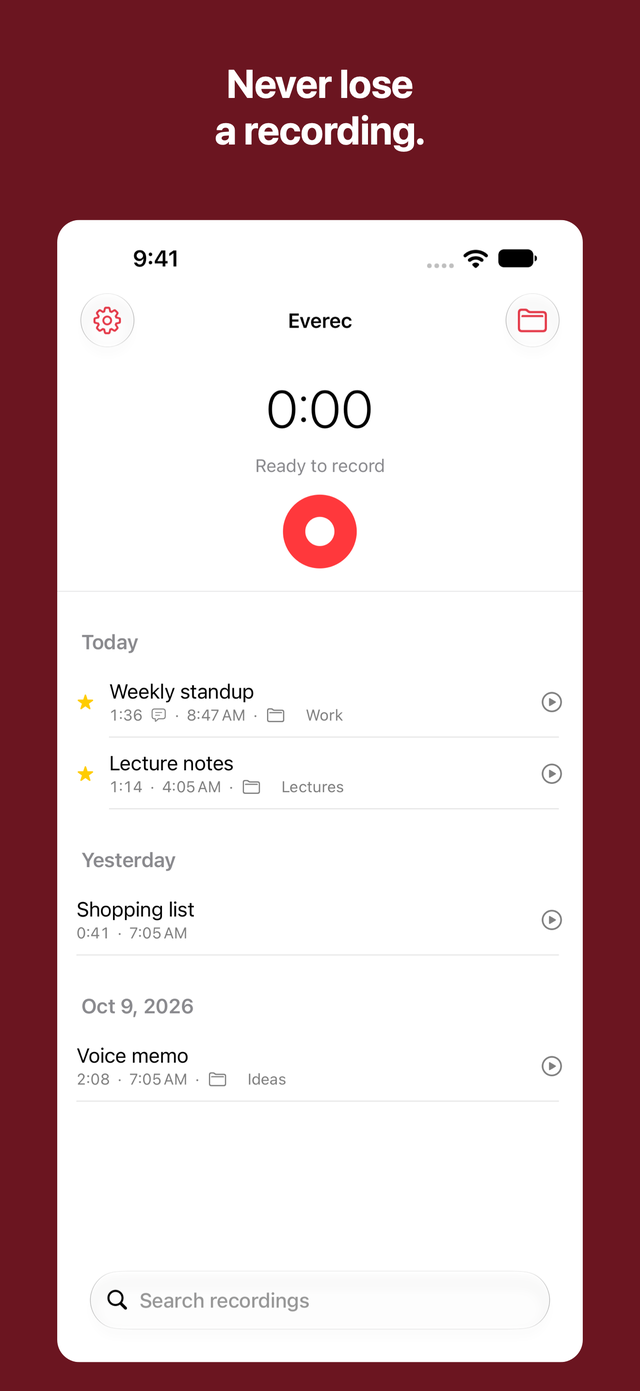
Never lose a recording
Many recorders finish the file only when you tap Stop — kill them mid-meeting and you can end up with a file that will not play. Everec writes as it records, so the audio is already on disk.
- 1
Tap record
From the icon to a running take in under two seconds.
- 2
Audio is written as you speak
Every buffer goes to disk immediately. There is no “save at the end” step that a crash can skip.
- 3
Open the app again
If something killed the session — crash, force-quit, dead battery — Everec offers to recover the file up to the last seconds written.
Built so the file is still there
🗑 Recently Deleted
A deleted recording waits 30 days before it is gone. Undo, right after the delete, brings it straight back.
✂️ Trim, then change your mind
Cut the start or end right in the player. Nothing is re-encoded, markers and the transcript stay in sync, and for 30 days Restore Original brings back what you cut.
🎤 Warns when it hears nothing
If no sound reaches the microphone, Everec tells you within seconds — with a notification when it runs in the background. When you stop, it checks the file: Saved and verified.
📞 Calls don’t wipe it
An incoming call pauses the recording, and it resumes by itself when the call ends. Unplugged headphones switch to the built-in mic instead of stopping.
🔒 Lock screen & background
Keep recording with the screen off. A long lecture does not depend on the app staying in the foreground.
📁 Folders, stars, search
Name takes, star the ones that matter, file them in folders, and find them later — including inside transcripts.
🔐 Encrypted on the device
The first 5 recordings are encrypted; Pro encrypts every one. Optional Face ID or Touch ID lock for the library.
🎛 Start from anywhere
Control Center, Lock Screen widget, Action Button, Siri, and Shortcuts — start a recording or drop a marker from wherever you are.
📊 Storage in plain sight
Settings → Storage shows what Everec keeps: recordings, Recently Deleted, the originals of trimmed recordings, and the free space.
Made for recordings you cannot replace
Meetings, consultations, interviews
A transcript without handing the conversation to a cloud service. The audio never leaves your device, and there is no account to create.
Lectures
Hours of recording with the screen locked, chapter markers for the parts that matter, and full-text search across every transcript.
Anyone who has lost a take
A recording that ends up 0 bytes or will not play usually means the app died before it finished saving. Everec saves continuously and recovers the rest on the next launch.
Sensitive conversations
Lawyers, therapists, journalists protecting a source: recordings encrypted on the device, a decoy vault behind a second PIN, and a recovery phrase only you hold.
Unlimited recording and playback are free, forever. You pay only if you want more transcription, encryption for everything, and the extra export tools.
How to get back a deleted voice memo, record a long lecture without losing it, transcribe a voice memo offline, or lock your recordings: read our voice recording guides.
Encrypted on your device
Recordings, titles, markers, and transcripts can be sealed with AES-GCM on the device. The key lives in the device’s Keychain — it is not in any backup and it never reaches us. We cannot read your files and we cannot reset your lock.
The first 5 recordings are encrypted for free, and recording is never blocked. Everec Pro encrypts every recording and adds a twelve-word recovery phrase for moving to a new iPhone or iPad, plus a decoy PIN that opens a separate library while your real recordings stay hidden.
There is nothing to sign up for and nothing watching you record. Purchases go through Apple; Everec never sees your payment details.
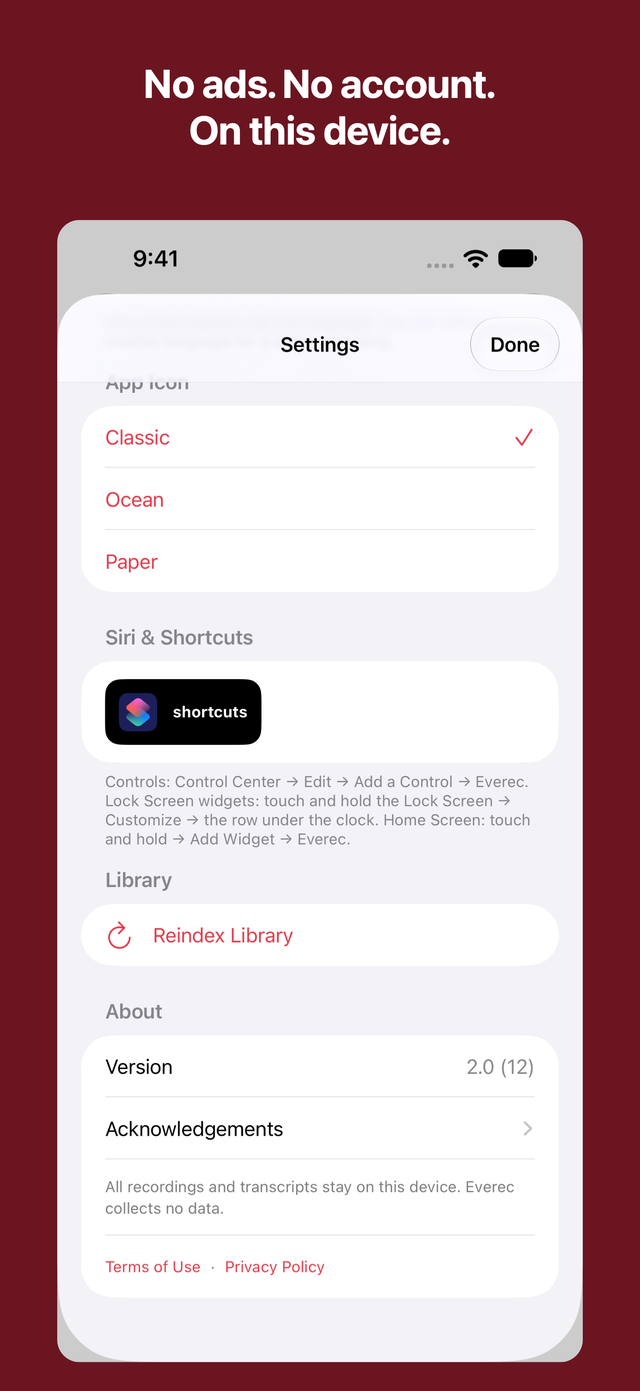
Simple, honest pricing
Free
$0
Unlimited recording, importing, playback, and trimming, forever. Folders, markers, Recently Deleted, Copy to a Folder, Face ID or Touch ID lock, the first 5 recordings encrypted, and 15 minutes of transcription every month. No ads.
Everec Pro
Monthly or yearly
The yearly plan starts with a 7-day free trial. Unlimited transcription, encryption for every recording, decoy vault and recovery phrase, subtitle and batch export, lossless recording, alternate icons. Cancel anytime — everything you recorded and transcribed stays yours.
Pro Lifetime
One time
The same Pro features as a one-time purchase. Nothing renews and there is nothing to cancel. Restore Purchases on any iPhone or iPad with your App Store account.
Privacy: nothing to collect, nothing collected
Recording and transcription stay on your device. The app has no account, no analytics, no ads, and its App Store privacy label is Data Not Collected. Optional Pro purchases are processed entirely by Apple. Read the full privacy policy.
Frequently asked questions
Can Everec transcribe without an internet connection — even in airplane mode?
Yes. Transcription runs on your iPhone or iPad and needs no connection. For 25 European languages the speech model is built into the app, so there is nothing to download. For the other languages Everec uses Apple’s on-device speech engines, and iOS downloads the model for a language once, the first time you use it. After that, recording, transcription, search, and export all work in airplane mode.
Is my audio uploaded anywhere to be transcribed?
No. There is no Everec server and no account. The audio and the transcript stay on your device unless you export or share a file yourself, or turn on Copy to a Folder with a folder in iCloud Drive. The App Store privacy label is “Data Not Collected”.
Which languages can it transcribe?
Since version 2.0, 25 European languages with the speech model built into the app: Bulgarian, Croatian, Czech, Danish, Dutch, English, Estonian, Finnish, French, German, Greek, Hungarian, Italian, Latvian, Lithuanian, Maltese, Polish, Portuguese, Romanian, Russian, Slovak, Slovenian, Spanish, Swedish, and Ukrainian. Apple’s on-device speech engines add Japanese, Korean, Chinese (Mandarin), Cantonese, Hindi, Arabic, Hebrew, Turkish, Thai, Vietnamese, Indonesian, Malay, Catalan, Norwegian, and more. The exact list depends on your iOS version; Everec shows it in Settings → Transcription → Default language.
Does Everec transcribe live while I record?
No. Everec makes the transcript after you stop recording: tap Transcribe, or turn on Settings → Transcription → Automatically transcribe and every new recording is transcribed in your default language as soon as you stop. There are no live captions during the recording.
Can I transcribe an existing audio file or a Voice Memos recording?
Yes, since version 2.1. In Voice Memos, Files, Mail, or another app, tap Share and choose Everec — or open the library menu in Everec and choose Import Audio… to pick files in Files. Everec adds the file to your library, and you transcribe it on the device like any other recording: offline, nothing uploaded. m4a files are kept as they are; mp3, WAV, and the sound of a video are converted to m4a. Importing is free; transcribing counts toward the free 15 minutes a month.
Does the transcript show who is speaking?
No. Everec does not label speakers. The transcript is the text of what was said, with timestamps: tap a sentence to jump to that moment, or export subtitles (.srt) that keep the timing.
Does Everec use Whisper or send my audio to OpenAI?
No. Everec does not use Whisper or any cloud service. The 25 European languages are transcribed by a speech model that ships inside the app, and the other languages by Apple’s on-device speech engines (SpeechAnalyzer, introduced in iOS 26). Both run on your iPhone or iPad, and the audio never leaves it.
What happens if the app crashes or is force-quit while recording?
The file is already on disk. Everec writes audio as you go, so a crash, a killed app, or a dead battery still leaves a playable recording up to the last seconds that were written. Open the app again and it will offer to recover the unfinished take.
What happens if a call or Siri interrupts the recording?
A phone call pauses the recording, and it resumes by itself when the call ends. If Bluetooth headphones disconnect, recording continues on the built-in mic. After a crash or force-quit, open Everec — it will offer to recover the file up to the last seconds that were written.
Can I trim a recording?
Yes, for free. Open the recording, tap the More button (…) in the player, and choose Trim to cut the start or the end. Everec copies the audio without re-encoding it, so the quality stays the same, and the chapter markers and the transcript stay in sync with the shorter recording. Changed your mind? For 30 days, Restore Original in the same More menu brings back what you cut. If the app is killed in the middle of a trim, you keep either the original or the trimmed recording — never a broken file.
What happens when I delete a recording?
It goes to Recently Deleted and waits there for 30 days. Right after a delete, tap Undo to bring it straight back; later, open Recently Deleted — in the library menu on iPhone, in the sidebar on iPad — and restore it. After 30 days Everec removes it for good, or sooner if you delete it there yourself.
Can I correct a transcript?
Yes. Tap the pencil above the transcript, fix a name or a word, and tap Save. Every line keeps its timestamp, so tapping a sentence still jumps to the right moment and exported subtitles stay in time. Search and export use the corrected text.
Will Everec tell me if a recording is picking up nothing?
Yes. If no sound reaches the microphone for 10 seconds, Everec shows a warning and keeps recording; when the app is in the background, a notification tells you. Turn on Settings → Alerts while recording so the warning can reach you. When you stop, Everec checks the file and shows “Saved and verified”.
How do I back up my recordings or get them onto my Mac?
Turn on Settings → Copy to a Folder and pick a folder, for example in iCloud Drive. A copy of every new recording — and its transcript as text, if you like — goes there, and your Mac sees it through iCloud Drive; Copy Existing Recordings adds the ones you already have. It works one way: Everec never changes or deletes anything in that folder. Encrypted recordings are copied only if you allow it, and those copies are not encrypted.
Does Everec work on iPad? Which devices does it run on?
Everec runs on iPhone and iPad with iOS or iPadOS 26 or later. On iPad your folders, the recordings, and the player with the transcript sit side by side, in portrait and landscape. On the foldable iPhone Duo the outer display gets the iPhone layout; unfold it and the player and the library sit next to each other, and playback carries on through the fold. There is no cloud sync between devices; to see your recordings elsewhere, turn on Copy to a Folder with a folder in iCloud Drive. There is no Android version.
Does Everec work with VoiceOver?
Yes. Every button is labelled, durations are read as words, and VoiceOver announces when a recording starts, pauses, or is saved and when a transcript is ready. A two-finger double tap starts or stops a recording in the library and plays or pauses in the player. The layout also adapts to the larger accessibility text sizes.
How is Everec different from other voice recorders?
Many recorders can transcribe. Everec is built around what happens when something goes wrong: a recording that stays playable after a crash or a force-quit, a warning when no sound reaches the microphone, 30 days to undo a delete or a trim, and encryption on the device with a decoy vault and a recovery phrase. Transcripts are made offline, and you can correct them and export them as plain text, Markdown, or subtitles (.srt).
Can you recover my encrypted recordings for me?
No. Encryption happens on your device and the key stays in its Keychain — it is not in any backup and we never see it. We cannot read your files and we cannot reset your lock. With Everec Pro you can create a twelve-word recovery phrase; it is what opens your encrypted recordings after a restore or on a new iPhone or iPad. Without the phrase, those recordings cannot be recovered.
Does it record phone calls or write AI summaries?
No. Everec records through the microphone, and iOS pauses the recording during a phone call. There are no AI summaries either — the transcript is the text of what was said, produced on the device.
Is Everec free? How much does it cost?
Everec is free to download. Recording, importing, playback, and trimming are unlimited and free. Every month includes 15 minutes of transcription, and the first 5 recordings are encrypted. Everec Pro is optional: a monthly plan, a yearly plan with a 7-day free trial, or a one-time lifetime unlock. The App Store shows the price for your country. It adds unlimited transcription, encryption for every recording, a decoy vault and recovery phrase, subtitle and batch export, lossless recording, and alternate app icons. There are no ads.
What happens to my recordings if I cancel Pro?
Nothing. Everything you recorded and transcribed stays yours, encrypted recordings stay playable, and recording, importing, and the free 15 minutes of transcription a month carry on.
Does the app collect my data?
No. The App Store privacy label is “Data Not Collected”. Recordings and transcripts stay on your device; the app has no account, no analytics, and no ads.
I bought Pro on another device — do I have to pay again?
No. Purchases are tied to your App Store account, so Pro works on your iPhone and your iPad alike. Open Settings (or the paywall) and tap Restore Purchases.
More questions? See the support page or email info@druidori.com.
Record it. Transcribe it offline. Keep it.
Free on iPhone and iPad · unlimited recording · nothing uploaded
Download on theApp Store